Fixing the “Database Connection Error” in WordPress: A Quick Guide
The “Error Establishing a Database Connection” message in WordPress can be daunting. This error means WordPress can’t communicate with the database. It can result from incorrect credentials, corrupted database, or server issues. Let’s fix it step-by-step.
What Is “Error Establishing a Database Connection”?
This error message means WordPress cannot connect to your database. The database stores all your site’s content, settings, and user data. Without a proper connection, your website cannot function correctly, leading to a site-wide outage.
What Causes “Error Establishing a Database Connection” in WordPress?
Several factors can cause this error:
- Incorrect Database Credentials: If the database name, username, or password in your wp-config.php file are wrong, WordPress can’t connect to the database.
- Corrupted Database: The database tables might be corrupted due to a plugin, theme, or server issue.
- Server Issues: The database server might be down, experiencing high traffic, or misconfigured.
- Corrupted WordPress Files: Essential WordPress files might be corrupted due to a failed update or malicious attack.
How to Fix the WordPress “Error Establishing a Database Connection” in 8 Methods
1. Check Your Database Server
Ensure your database server is working correctly.
- Contact Your Hosting Provider: Ask if there are any server issues.
- Test with a Simple Script: Create a PHP file to test the connection:
<?php
$link = mysqli_connect('localhost', 'your_database_user', 'your_database_password');
if (!$link) {
    die('Could not connect: ' . mysqli_error());
}
echo 'Connected successfully';
mysqli_close($link);
?>
Upload and access this file via your browser. If it connects, the server is fine.
2. Check the Database Credentials
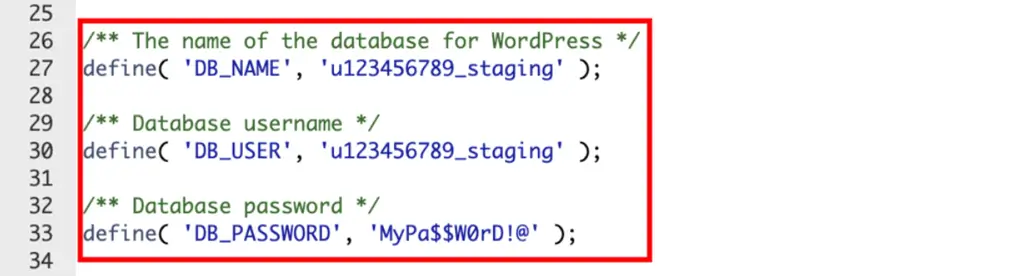
Verify your database credentials in the wp-config.php file.
- Access wp-config.php: Use FTP or your hosting control panel.
- Check Database Settings: Verify these lines:
define('DB_NAME', 'your_database_name');
define('DB_USER', 'your_database_user');
define('DB_PASSWORD', 'your_database_password');
define('DB_HOST', 'localhost');
Ensure these details are correct.
3. Fix Corrupted Files
Replace corrupted WordPress files with fresh copies.
- Download WordPress: Get the latest version from WordPress.org.
- Upload Files: Replace wp-admin and wp-includes folders via FTP. Do not replace the wp-content folder.
Important! You can disable all themes simultaneously by renaming the folder. However, unlike plugins, the default one will automatically reactivate when you revert it to the original name.
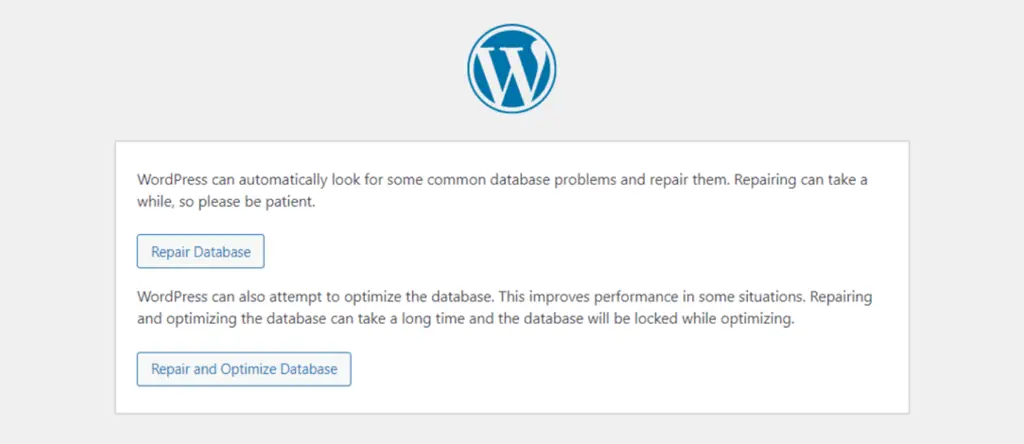
4. Repair the Database in WordPress
Use WordPress’s built-in repair feature.
- Enable Database Repair: Add this line to wp-config.php before ‘That’s all, stop editing!’:
define('WP_ALLOW_REPAIR', true);- Run the Repair Script: Go to
http://yourwebsite.com/wp-admin/maint/repair.php. Click “Repair Database.” - Disable Database Repair: Remove the line from wp-config.php.
5. Create a New Database
If the database is irreparable, create a new one.
- Access Your Hosting Control Panel: Use tools like phpMyAdmin.
- Create a New Database: Create a new database and user.
- Update wp-config.php: Update the file with new database credentials.
6. Make Sure Your Domain Is Pointing to Your Host Provider
Ensure your domain is correctly configured.
- Check DNS Settings: Verify your domain points to your hosting provider’s server.
- Contact Your Domain Provider: Ask for help if needed.
7. Update WordPress Website URL
Incorrect URL settings in your database can cause connection issues.
- Access phpMyAdmin: Use your hosting control panel to access phpMyAdmin.
- Update URL in Database: Navigate to the wp_options table and update the siteurl and home options to reflect your site’s correct URL
8. Alternative Methods to Fix WordPress “Error Establishing a Database Connection”
If all else fails, try these alternative methods:
- Disable Plugins: Rename the plugins folder in wp-content to disable all plugins. This will help you determine if a plugin is causing the issue.
- Switch to Default Theme: Rename your active theme folder in wp-content/themes. This will force WordPress to use a default theme.
- Check .htaccess File: Rename the .htaccess file to see if it’s causing the issue. WordPress will generate a new one if needed.
How to Prevent “Error Establishing a Database Connection”
- Regular Backups: Back up your WordPress site and database regularly.
- Monitor Server Performance: Use tools to monitor server performance.
- Optimize Database: Regularly optimize your database.
- Update Credentials: Ensure wp-config.php credentials are always correct.
Error Establishing a Database Connection FAQ
Why Is My WordPress Database Connection Not Working?
It could be due to incorrect credentials, server issues, or a corrupted database. Checking and correcting these can resolve the issue.
Is It Possible for a Plugin or Theme to Cause a Database Connection Error?
Yes, a faulty plugin or theme can cause this error by affecting the database. Disabling plugins and switching themes can help identify the problem.
Can Heavy Website Traffic Lead to Database Connection Errors?
Yes, high traffic can overload the server, leading to connection errors. Monitoring and optimizing server performance can mitigate this issue.